Google Search

Showing posts with label ANDROID PROGRAM. Show all posts

How To Read Excel Sheet in Android Using jexcelApi


==>Android Application in jexcelapi through you can easily read excel sheet data and also set the data in Textview  android.

=>If You Want To Read Data To Excelsheet in Android so make Sure Follow Below Steps:-

Step  1:-
Create A new Android Project.

Step  2:- 
paste a bellow code to mainxml file.
 
<?xml version="1.0" encoding="utf-8"?>
<LinearLayout xmlns:android="http://schemas.android.com/apk/res/android" 
 xmlns:tools="http://schemas.android.com/tools" 
 android:id="@+id/container" 
 android:layout_width="match_parent" 
 android:layout_height="match_parent" 
 android:background="#ffffff" 
 android:orientation="vertical">

    <TextView         
android:id="@+id/textView" 
 android:layout_width="wrap_content" 
 android:layout_height="wrap_content" 
 android:text="Scan" 
 android:textColor="#000000" 
 android:textSize="30dp" />

    <Button 
 android:id="@+id/readdata" 
 android:layout_width="250dp" 
 android:layout_height="80dp" 
 android:layout_gravity="center" 
 android:layout_margin="10dp" 
 android:gravity="center"
 android:text="Read Data" 
 android:onClick="Read" 
 android:textSize="18dp" />

</LinearLayout>


 Step  :-3
if you not have a Assets folder then Create a Assets Folder and Paste in that a ExcelSheet.

Step   4:-
Download A jexcelapi jar file in this link to download https://sourceforge.net/projects/jexcelapi/files/
and also paste this jar file is lib direcrtory.

step  5:-
Paste bellow code to main.javafile

package com.college.barcodedemos;

import android.app.Activity;
import android.app.AlertDialog;
import android.content.ActivityNotFoundException;
import android.content.Context;
import android.content.DialogInterface;
import android.content.Intent;
import android.content.res.AssetManager;
import android.net.Uri;
import android.os.Bundle;
import android.view.Menu;
import android.view.MenuItem;
import android.view.View;
import android.widget.Button;
import android.widget.TextView;
import android.widget.Toast;

import java.io.InputStream;

import jxl.Cell;
import jxl.Sheet;
import jxl.Workbook;

public class MainActivity extends Activity {
    Button Read;
    TextView data;


    @Override    protected void onCreate(Bundle savedInstanceState) {
        super.onCreate(savedInstanceState);
        setContentView(R.layout.activity_main);
    }

    public void Read(View v) {
        //Read=(Button)findViewById(R.id.readdata);        try {
            AssetManager am = getAssets();
            InputStream is = am.open("info.xls");
            Workbook wb = Workbook.getWorkbook(is);
            Sheet s = wb.getSheet(0);
            int row = s.getRows();
            int cols = s.getColumns();
            String xx = "";
            for (int i = 0; i < row; i++) {
                for (int c = 0; c < cols; c++) {
                    Cell z = s.getCell(c, i);
                    xx = xx + z.getContents();
                }
                xx = xx + "\n";
            }
            display(xx);

        } catch (Exception e) {

        }

    }

    public void display(String Value) {
        data = (TextView) findViewById(R.id.textView);
        data.setText(Value);
    }
}

Step  6:-

Test The Output
 
Before Click Button  project  output is:-
 
android Read Excel data and set textview
 

 After Clicked Read Data Button output Display this output :-
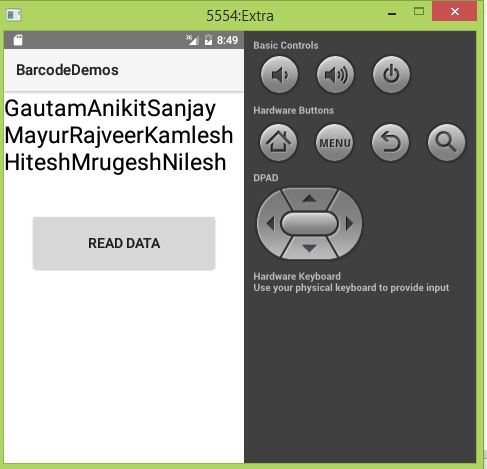

android excel sheed data read


How To Develop Font Editor In Android App..


=>This Tutorial can be used for different font types ,font color,font size and also Text Background Color can be set.

=>This Tutorial can provide facility to select option to drop down box in different category in android eclipse editor.

fontEditor Layout


Fonteditor.xmlfile

<RelativeLayout xmlns:android="http://schemas.android.com/apk/res/android"
    xmlns:tools="http://schemas.android.com/tools"
    android:layout_width="match_parent"
    android:layout_height="match_parent"
    android:id="@+id/r"
    tools:context=".MainActivity" >

    <Spinner
        android:id="@+id/spinner1"
        android:layout_width="wrap_content"
        android:layout_height="wrap_content"
        android:layout_alignParentLeft="true"
        android:layout_alignParentTop="true"
        android:layout_marginLeft="30dp"
        android:entries="@array/font1"/>

    <EditText
        android:id="@+id/editText1"
        android:layout_width="wrap_content"
        android:layout_height="wrap_content"
        android:layout_alignLeft="@+id/spinner1"
        android:layout_alignParentBottom="true"
        android:layout_marginBottom="32dp"
        android:ems="10"
          android:hint="Here Type Something" >

        <requestFocus />
    </EditText>

    <Spinner
        android:id="@+id/spinner2"
        android:layout_width="wrap_content"
        android:layout_height="wrap_content"
        android:layout_alignLeft="@+id/spinner1"
        android:layout_below="@+id/spinner1"
        android:entries="@array/FontSize"/>

    <Spinner
        android:id="@+id/spinner3"
        android:layout_width="wrap_content"
        android:layout_height="wrap_content"
        android:layout_alignLeft="@+id/spinner2"
        android:layout_below="@+id/spinner2"
        android:layout_marginLeft="36dp"
        android:layout_marginTop="30dp"
        android:entries="@array/Effect" />

    <Spinner
        android:id="@+id/spinner4"
        android:layout_width="wrap_content"
        android:layout_height="wrap_content"
        android:layout_alignLeft="@+id/spinner3"
        android:layout_below="@+id/spinner3"
        android:layout_marginTop="55dp"
        android:entries="@array/Color"/>

    <Spinner
        android:id="@+id/spinner5"
        android:layout_width="wrap_content"
        android:layout_height="wrap_content"
        android:layout_alignLeft="@+id/spinner4"
        android:layout_below="@+id/spinner4"
        android:layout_marginLeft="25dp"
        android:layout_marginTop="17dp"
        android:entries="@array/Backgroundcolor"
       />

</RelativeLayout> 

fonteditor javafile 

package com.example.fonteditor;

import android.app.Activity;
import android.content.res.ColorStateList;
import android.graphics.Color;
import android.graphics.Typeface;
import android.os.Bundle;
import android.view.Menu;
import android.view.View;
import android.widget.AdapterView;
import android.widget.AdapterView.OnItemSelectedListener;
import android.widget.EditText;
import android.widget.RelativeLayout;
import android.widget.Spinner;
import android.widget.Toast;

public class MainActivity extends Activity {

    Spinner sp1,sp2,sp3,sp4,sp5;
    EditText e1;
    RelativeLayout r1;
    @Override
    protected void onCreate(Bundle savedInstanceState) {
        super.onCreate(savedInstanceState);
        setContentView(R.layout.activity_main);
        sp1=(Spinner)findViewById(R.id.spinner1);
        sp2=(Spinner)findViewById(R.id.spinner2);
        sp3=(Spinner)findViewById(R.id.spinner3);
        sp4=(Spinner)findViewById(R.id.spinner4);
        sp5=(Spinner)findViewById(R.id.spinner5);
       
        e1=(EditText)findViewById(R.id.editText1);
       
        sp4.setOnItemSelectedListener(new OnItemSelectedListener() {

            @Override
            public void onItemSelected(AdapterView<?> arg0, View arg1,
                    int arg2, long arg3) {
                //String c=arg0.getItemIdAtPosition(arg2);
                String c=arg0.getItemAtPosition(arg2).toString();
                if(c.equals("Red"))
                {
                    e1.setTextColor(Color.RED);
                }
                if(c.equals("Green"))
                {
                    e1.setTextColor(Color.GREEN);
                }
                if(c.equals("Blue"))
                {
                    e1.setTextColor(Color.BLUE);
                }
            }

            @Override
            public void onNothingSelected(AdapterView<?> arg0) {
                // TODO Auto-generated method stub
               
            }
        });
       
        sp5.setOnItemSelectedListener(new OnItemSelectedListener() {

            @Override
            public void onItemSelected(AdapterView<?> arg0, View arg1,
                    int arg2, long arg3) {
                //String c=arg0.getItemIdAtPosition(arg2);
                String c=arg0.getItemAtPosition(arg2).toString();
                if(c.equals("Red"))
                {
                    e1.setBackgroundColor(Color.RED);
                }
                if(c.equals("Green"))
                {
                    e1.setBackgroundColor(Color.GREEN);
                }
                if(c.equals("Blue"))
                {
                    e1.setBackgroundColor(Color.BLUE);
                }
            }

            @Override
            public void onNothingSelected(AdapterView<?> arg0) {
                // TODO Auto-generated method stub
               
            }
        });


        sp3.setOnItemSelectedListener(new OnItemSelectedListener() {

            @Override
            public void onItemSelected(AdapterView<?> arg0, View arg1,
                    int arg2, long arg3) {
                // TODO Auto-generated method stub
                String s3=arg0.getItemAtPosition(arg2).toString();
                if(s3.equals("Bold"))
                {
                    Typeface t=Typeface.create("", Typeface.BOLD);
                    e1.setTypeface(t);   
                }
                if(s3.equals("Italic"))
                {
                    Typeface t=Typeface.create("", Typeface.ITALIC);
                    e1.setTypeface(t);
                    Toast.makeText(getApplicationContext(), "hello", 20).show();
                }
                if(s3.equals("Bold|Italic"))
                {
                    Typeface t=Typeface.create("", Typeface.BOLD_ITALIC);
                    e1.setTypeface(t);
                }
               
            }

            @Override
            public void onNothingSelected(AdapterView<?> arg0) {
                // TODO Auto-generated method stub
               
            }
        });
       
        sp2.setOnItemSelectedListener(new OnItemSelectedListener() {

            @Override
            public void onItemSelected(AdapterView<?> arg0, View arg1,
                    int arg2, long arg3) {
                // TODO Auto-generated method stub
                String s2=arg0.getItemAtPosition(arg2).toString();
                float f=Float.parseFloat(s2);
                e1.setTextSize(f);
               
            }

            @Override
            public void onNothingSelected(AdapterView<?> arg0) {
                // TODO Auto-generated method stub
               
            }
        });
       
        sp1.setOnItemSelectedListener(new OnItemSelectedListener() {

            @Override
            public void onItemSelected(AdapterView<?> arg0, View arg1,
                    int arg2, long arg3) {
                // TODO Auto-generated method stub
                String s1=arg0.getItemAtPosition(arg2).toString();
                if(s1.equals("Font-1"))
                {
                    String path="fonts/BrotherTattoo_Demo.ttf";
                    Typeface tf=Typeface.createFromAsset(getAssets(), path);
                    e1.setTypeface(tf);
                }
                if(s1.equals("Font-2"))
                {

                    String path="fonts/Admiration Pains.ttf";
                    Typeface tf=Typeface.createFromAsset(getAssets(), path);
                    e1.setTypeface(tf);
                }
                if(s1.equals("Font-3"))
                {
                    String path="fonts/Jonquilles.ttf";
                    Typeface tf=Typeface.createFromAsset(getAssets(), path);
                    e1.setTypeface(tf);
                }
               
               
            }

            @Override
            public void onNothingSelected(AdapterView<?> arg0) {
                // TODO Auto-generated method stub
               
            }
        });
    }

    @Override
    public boolean onCreateOptionsMenu(Menu menu) {
        // Inflate the menu; this adds items to the action bar if it is present.
        getMenuInflater().inflate(R.menu.activity_main, menu);
        return true;
    }

}
 
font editor output 

font editor android


How To Open Browser Using Webview


=>this Tutorial can be useful to when you want to open browser using webview in android.this tutorial used to whenever open any url into browser.

=>This tutorial required one permission in android manifest file="INTERNET".


webview layout

open browser using webview

webview xmlfile

<RelativeLayout xmlns:android="http://schemas.android.com/apk/res/android"
    xmlns:tools="http://schemas.android.com/tools"
    android:layout_width="match_parent"
    android:layout_height="match_parent"
    android:paddingBottom="@dimen/activity_vertical_margin"
    android:paddingLeft="@dimen/activity_horizontal_margin"
    android:paddingRight="@dimen/activity_horizontal_margin"
    android:paddingTop="@dimen/activity_vertical_margin"
    tools:context=".MainActivity" >

    <WebView
        android:id="@+id/webView1"
        android:layout_width="match_parent"
        android:layout_height="match_parent"
        android:layout_alignParentTop="true"
        android:layout_centerHorizontal="true"
        android:background="#00ff00"/>

</RelativeLayout> 

webview java file

package com.example.webview;

import android.os.Bundle;
import android.app.Activity;
import android.view.Menu;
import android.webkit.WebView;

public class MainActivity extends Activity {

    WebView wb;
    @Override
    protected void onCreate(Bundle savedInstanceState) {
        super.onCreate(savedInstanceState);
        setContentView(R.layout.activity_main);
        wb=(WebView)findViewById(R.id.webView1);
       
        //<======Here Open Google using webview====>//
        wb.loadUrl("http://www.google.com");
    }

    @Override
    public boolean onCreateOptionsMenu(Menu menu) {
        // Inflate the menu; this adds items to the action bar if it is present.
        getMenuInflater().inflate(R.menu.main, menu);
        return true;
    }

}

 webview output


webview in android


Custom Listview Using Custom Adapter

=> Friends here I am Post the Important Tutorial of Custom List view whenever any  want to implment Custom lstview then also useful my this Tutorial.

=>Custom listview implement in using custom adapter class and also that constucter.

main_activity xmlfile

custom listview


<RelativeLayout xmlns:android="http://schemas.android.com/apk/res/android"
    xmlns:tools="http://schemas.android.com/tools"
    android:layout_width="match_parent"
    android:layout_height="match_parent"
    tools:context=".MainActivity" >

    <ListView
        android:id="@+id/listView1"
        android:layout_width="match_parent"
        android:layout_height="wrap_content"
        android:layout_alignParentLeft="true"
        android:layout_alignParentTop="true" >
    </ListView>

</RelativeLayout>


customlistviewitem xmlfile 

custom listview in android

 <LinearLayout xmlns:android="http://schemas.android.com/apk/res/android"
    xmlns:tools="http://schemas.android.com/tools"
    android:layout_width="match_parent"
    android:layout_height="match_parent"
    tools:context=".Cust"

    android:orientation="horizontal">

    <TextView
        android:id="@+id/tv1"
        android:layout_width="96dp"
        android:layout_height="wrap_content"
                android:background="#ff00ff"
                android:textColor="#565656"
        android:text="no"
        android:textSize="30dp" />

    <TextView
        android:id="@+id/tv2"
        android:layout_width="150dp"
        android:layout_height="wrap_content"
        android:background="#00ff00"
        android:text="name"
        android:gravity="center"
        android:textColor="#ff0000"
        android:textSize="30dp" />

    <TextView
        android:id="@+id/tv3"
        android:layout_width="match_parent"
        android:layout_height="wrap_content"
        android:gravity="center"
        android:background="#ff0000"
        android:text="city"
        android:textColor="#00ff00"
        android:textSize="30dp"  />

</LinearLayout>

Main_Activity javafile 

 package com.example.listview;

import com.example.listview.R.drawable;

import android.os.Bundle;
import android.R.anim;
import android.app.Activity;
import android.content.Context;
import android.view.Menu;
import android.widget.ArrayAdapter;
import android.widget.ListView;
import android.widget.Toast;

public class MainActivity extends Activity {
ListView ls;
Context context;
public static String [] s_id={"1","2","3","4","5"};
public static String [] s_name={"Gautam","Nilesh","Rajesh","Prakash","Rakesh"};
public static String [] s_city={"Rangpur","Rajkot","Botad","Chotila","Valsad"};
@Override
    protected void onCreate(Bundle savedInstanceState) {
        super.onCreate(savedInstanceState);
        setContentView(R.layout.activity_main);
        ls=(ListView)findViewById(R.id.listView1);
        //String[] ss={"A","V"};
        context=this;
        try
        {
        ls.setAdapter(new Cust(MainActivity.this,s_id,s_name,s_city));
        }
        catch(Exception e)
        {
            Toast.makeText(getApplicationContext(),""+ e, 50).show();
        }
        
    }

    @Override
    public boolean onCreateOptionsMenu(Menu menu) {
        // Inflate the menu; this adds items to the action bar if it is present.
        getMenuInflater().inflate(R.menu.activity_main, menu);
        return true;
    }

}


           Custom_Adapter javafile


package com.example.listview;
import java.util.zip.Inflater;
import android.os.Bundle;
import android.app.Activity;
import android.content.Context;
import android.text.Layout;
import android.util.Log;
import android.view.LayoutInflater;
import android.view.Menu;
import android.view.View;
import android.view.ViewGroup;
import android.widget.ArrayAdapter;
import android.widget.BaseAdapter;
import android.widget.ImageView;
import android.widget.TextView;
import android.widget.Toast;
public class Cust extends BaseAdapter {
    View vi;
    int [] imgId;
    String[]  Result;
    String[]  Result2;
    String[]  Result3;
    static Context context;
    //private static LayoutInflater inflater=null;
   
    public Cust(MainActivity mainActivity, String[] s_no, String[] s_name,
            String[] s_city) {
        // TODO Auto-generated constructor stub
        Result=s_no;
        Result2=s_name;
        Result3=s_city;
        context=mainActivity;
        
    }
    @Override
    public int getCount() {
        // TODO Auto-generated method stub
        return Result.length;
    }
    public String getItem(String arg0) {
        // TODO Auto-generated method stub
        return arg0;
    }
    @Override
    public long getItemId(int arg0) {
        // TODO Auto-generated method stub
        return arg0;
    }
   
   
    @Override
    public View getView( int arg0, View arg1, ViewGroup arg2) {
        // TODO Auto-generated method stub
        TextView tv1,tv2,tv3;
        
        
        vi=arg1;
           if (vi == null) {
                LayoutInflater mInflater = (LayoutInflater) context
                        .getSystemService(Activity.LAYOUT_INFLATER_SERVICE);
                vi= mInflater.inflate(R.layout.activity_cust, null);
            }
        tv1=(TextView)vi.findViewById(R.id.tv1);
    tv2=(TextView)vi.findViewById(R.id.tv2);
    tv3=(TextView)vi.findViewById(R.id.tv3);
        
        
        tv1.setText(Result[arg0].toString());
        tv2.setText(Result2[arg0].toString());
        tv3.setText(Result3[arg0].toString());
        
        vi.setOnClickListener(new View.OnClickListener() {
            
            @Override
            public void onClick(View arg0) {
                // TODO Auto-generated method stub
                Toast.makeText(null, "Click", 50).show();
            }
        });
        
        return vi;
        
    }
    @Override
    public Object getItem(int arg0) {
        // TODO Auto-generated method stub
        return null;
    }


}

custom listview output 


custom adpter class